You’ve got GrapheneOS installed. Now what?
The first boot gives you a clean setup screen. No Google account login. No “accept all cookies” nonsense. Just language selection, Wi-Fi, and a fingerprint if you want one. Take the time to set your PIN properly — use the scrambled layout option in settings. It shuffles the numbers every time the screen turns on, so anyone watching you type it sees gibberish.
The profile strategy
If there’s one thing that makes GrapheneOS different from every other phone OS, it’s the profile system. Stock Android technically supports multiple users, but GrapheneOS makes it actually usable. Here’s how I run mine:
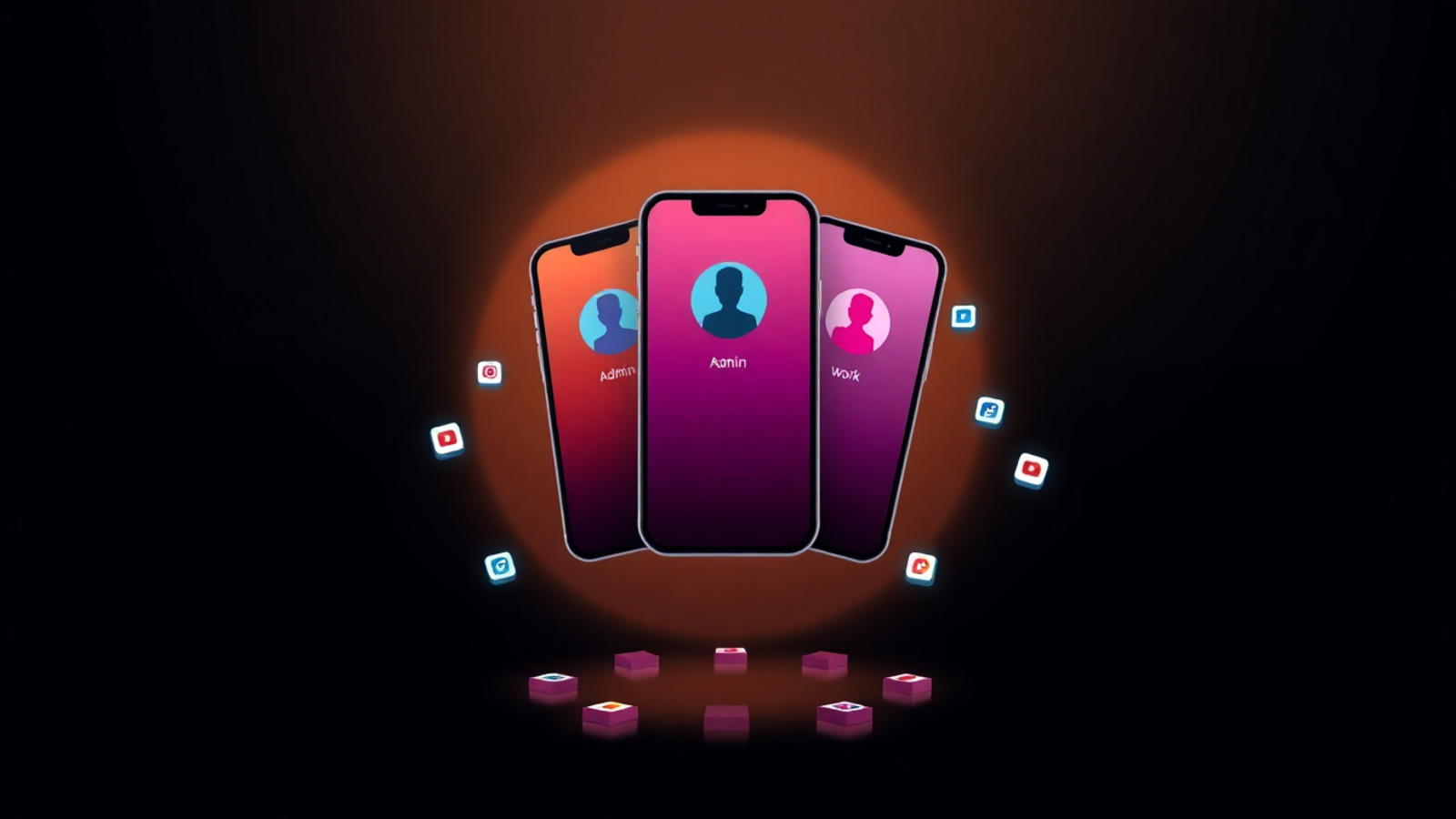
Owner profile (admin): This is the profile you set up on first boot. I keep it clean. No apps installed here except the GrapheneOS App Store, a file manager, and Signal if you want encrypted messaging at the admin level. This profile has full control over the device — installing system apps, managing other users, toggling advanced permissions. You don’t want your daily driver apps living here, because any app you install on Owner has more access than it should.
Primary profile (daily driver): This is where I live. My messaging apps (Signal, nostr client), my wallet (lightning app, exchange apps if you must), my camera, my maps. The key is that this profile cannot install system-level apps or modify other profiles. It’s sandboxed from the Owner layer. If something goes wrong here — a dodgy app, an exploit, a bad update — the Owner profile is untouched.
Work profile (or second daily, or whatever): You can create as many as you need. I have a third profile for financial apps only — exchange apps, banking, stuff that I don’t need access to during a normal day. Keeps the attack surface minimal.
To create a new profile: Settings > System > Multiple users > Add user. You can assign specific apps and permissions per profile. They share nothing unless you explicitly allow it.
Pushing apps from Owner to other profiles
This is the workflow that took me the longest to figure out. You don’t install apps directly on your daily driver profile. Instead:
- Install the app on the Owner profile using whatever app store you choose
- Long-press the app icon
- Select “Install on other users”
- Choose which profiles get it
This keeps the Owner profile as the gatekeeper. Your daily driver profile gets the app without needing its own store access.
The app stores I use
I run four, and each has a specific job.
GrapheneOS App Store. Ships with the OS. Minimal, signed, verified. It’s not a big catalog but the apps that are there are curated well. I get Accrescent and a few others from here.
Obtainium. This is the one you’ll use most. It pulls APKs directly from source — GitHub releases, GitLab, Codeberg, wherever the developer publishes. No middleman, no repository signing drama, no delays waiting for someone else to approve an update. You add an app URL and Obtainium checks for new versions automatically. I use this for Signal, Molly, Bitcoin Wallet, and anything else that publishes signed releases on GitHub.
Aurora Store. This is your anonymous window into the Google Play catalog. Aurora Store lets you browse and download Play Store apps without signing into a Google account. You can use anonymous sessions (it generates fake accounts on the fly) or login with a burner Google account if you need paid apps you already own. I use it for apps that only exist on Play — banking apps, ride-sharing, that sort of thing. The anonymous mode works fine for most free apps.
Accrescent. A newer store focused on signed, verified FOSS apps. Smaller catalog than F-Droid but higher quality bar. Every app is signed by the developer, not the store, which means the update chain is trustworthy. It’s also available through the GrapheneOS App Store, which tells you something about how seriously they take security. I keep it for a handful of apps that Accrescent carries and Obtainium doesn’t.
Zap Store. This one’s interesting — uses the Nostr protocol for app metadata. Already in the Nostr world? Zap Store feels natural. Decentralized app discovery, no central server controlling what you can install. Still early but the direction is right. I have it installed more out of principle than daily need, but it keeps growing.
What about F-Droid?
I used F-Droid for years. I don’t anymore. The signing model is problematic — F-Droid resigns apps with its own keys instead of using the developer’s signature. That means you’re trusting F-Droid’s infrastructure, not the app developer’s. For some people that’s fine. For me, if I’m running a hardened OS, I want the whole chain to be clean. Obtainium + Accrescent covers the FOSS catalog without the F-Droid signing issue. Your mileage may vary.
Sandboxed Google Play
GrapheneOS lets you install Google Play Services in a sandbox — not as system-level bloatware, but as a regular user-installed app with controllable permissions. If you need push notifications or specific Play-dependent apps, enable it through the GrapheneOS App Store. I run it sandboxed on my daily driver profile for Signal push notifications and nothing else. It gets network permission revoked when I don’t need it.
Daily use tips
A few things I’ve learned over two years:
-
Network toggle as a habit. Default to off. Turn on Wi-Fi or mobile data only when you need it. It saves battery and keeps apps from phoning home.
-
Sensor toggle in quick settings. GrapheneOS puts a sensor toggle in the quick settings panel. Use it. One tap kills the camera, mic, and all hardware sensors. I leave this on by default and turn it off briefly when I actually need to scan a QR code or take a photo.
-
Storage scopes are your friend. When an app asks for storage access, grant it to a specific folder. Not the whole filesystem. Most apps don’t need your entire photo library.
-
Reboot periodically. GrapheneOS has a feature that forces a reboot after a configurable number of unlocks. Enable it. It clears transient state and resets any lingering exploit attempts.
-
Keep it boring. The best phone setup is the one you stop thinking about. GrapheneOS, once it’s set up, just works. Don’t chase every new app store. Don’t flash weekly updates. Install, configure, and get on with your life.
Hardware sourcing (again)
I should mention Reebelo again because they’re worth it. Refurbished Pixels at fair prices with clean IMEIs and unlockable bootloaders. I’ve bought three devices from them — one for me, two for family members I’m migrating off stock Android. Zero issues.
Rounding it all up
Bitcoin taught me that sovereignty starts with understanding the system you’re in. As Spiral Dynamics shows us, different people see Bitcoin from different stages — and the sovereign individual sees it from Yellow. GrapheneOS is the same idea, just applied to the phone in your pocket. It’s not about being paranoid. It’s about not being a product.
I’ve been running GrapheneOS since 2024 and I’ve never once considered going back. Not a single moment of regret. The phone does everything I need — calls, messages, maps, Lightning payments, Signal, Nostr, camera — and nothing I don’t. No Google Assistant listening in the background. No Play Services draining battery. No apps exfiltrating my data to marketing platforms.
If you’ve read this far, you already know if this is for you. Head back to Part 1 if you need the why, or Part 2 for the full install guide. Get a refurbished Pixel from Reebelo. Install GrapheneOS. Set up your profiles. Choose your app stores. And take back the most surveilled device you own.